Prerequisites
Before you start, make sure you have:
- A Shopify store with products that have EAN/barcode codes
- A Decathlon marketplace seller account (via Mirakl)
- Apply at the Decathlon marketplace portal for your country
- Once approved, go to Mirakl Dashboard → Settings → API → Generate API Key
Install the App
Install VYNQO Decathlon from your Shopify admin or via the install link provided by VYNQO. After installation, the app opens inside your Shopify admin.
Connect Your Decathlon Account
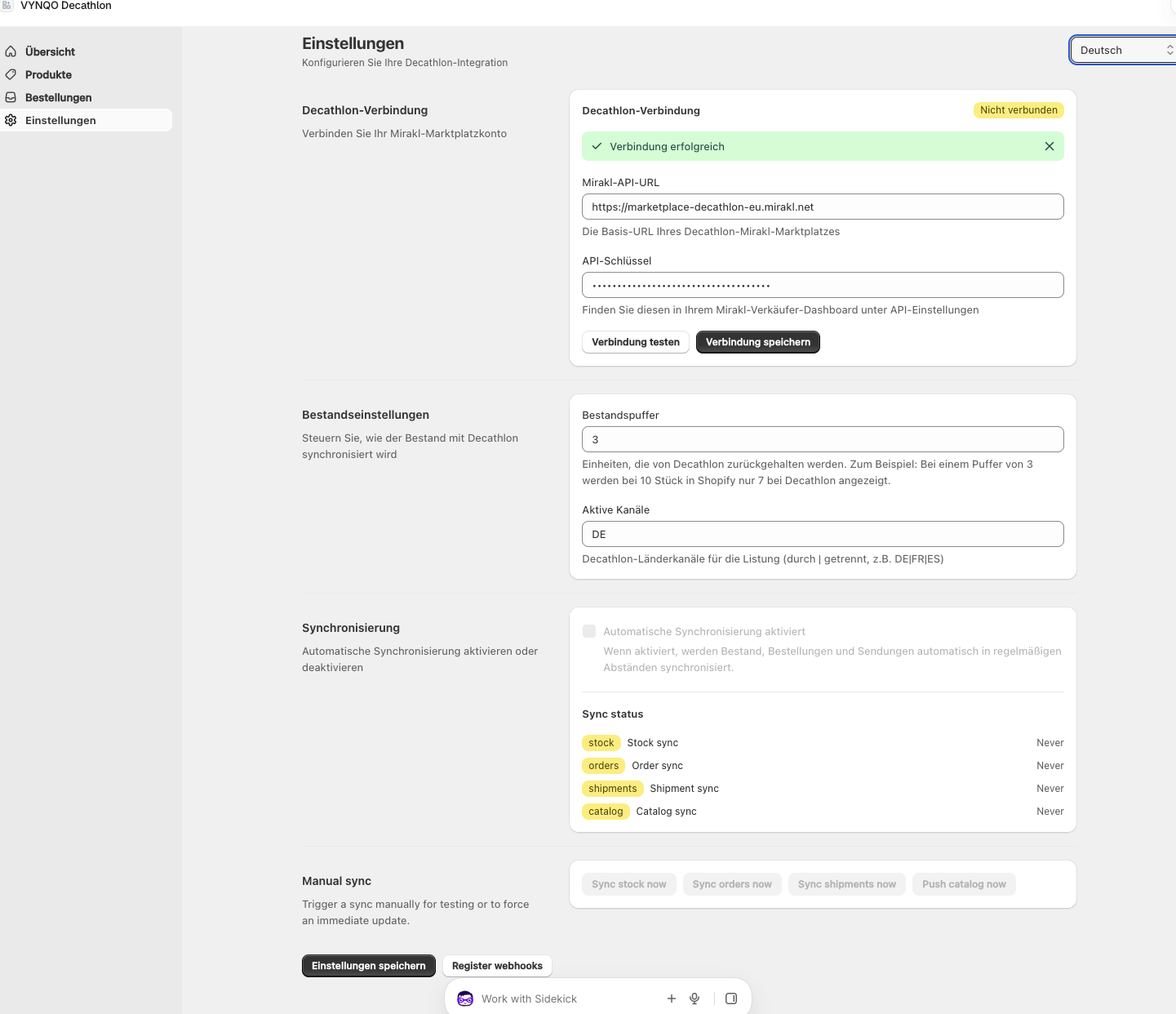
Go to Settings in the app sidebar and enter your Decathlon connection details:
- Mirakl API URL:
https://marketplace-decathlon-eu.mirakl.net(same for all EU sellers) - API Key: your Mirakl API key from the seller dashboard
Click Test connection to verify, then Save.
Configure Stock Settings
- Stock buffer: units to withhold from Decathlon. E.g., buffer of 3 with 10 in stock → Decathlon shows 7. Prevents overselling.
- Active channels: which Decathlon countries to list on, separated by
|
| Channels | Code |
|---|---|
| Germany only | DE |
| Germany + France + Spain | DE|FR|ES |
| All 6 EU channels | DE|FR|ES|IT|PT|IE |
Start with a stock buffer of 3 for regular sizes and 1 for extreme sizes (XXS, XXL). Adjust based on your sell-through rate.
Map Your Products
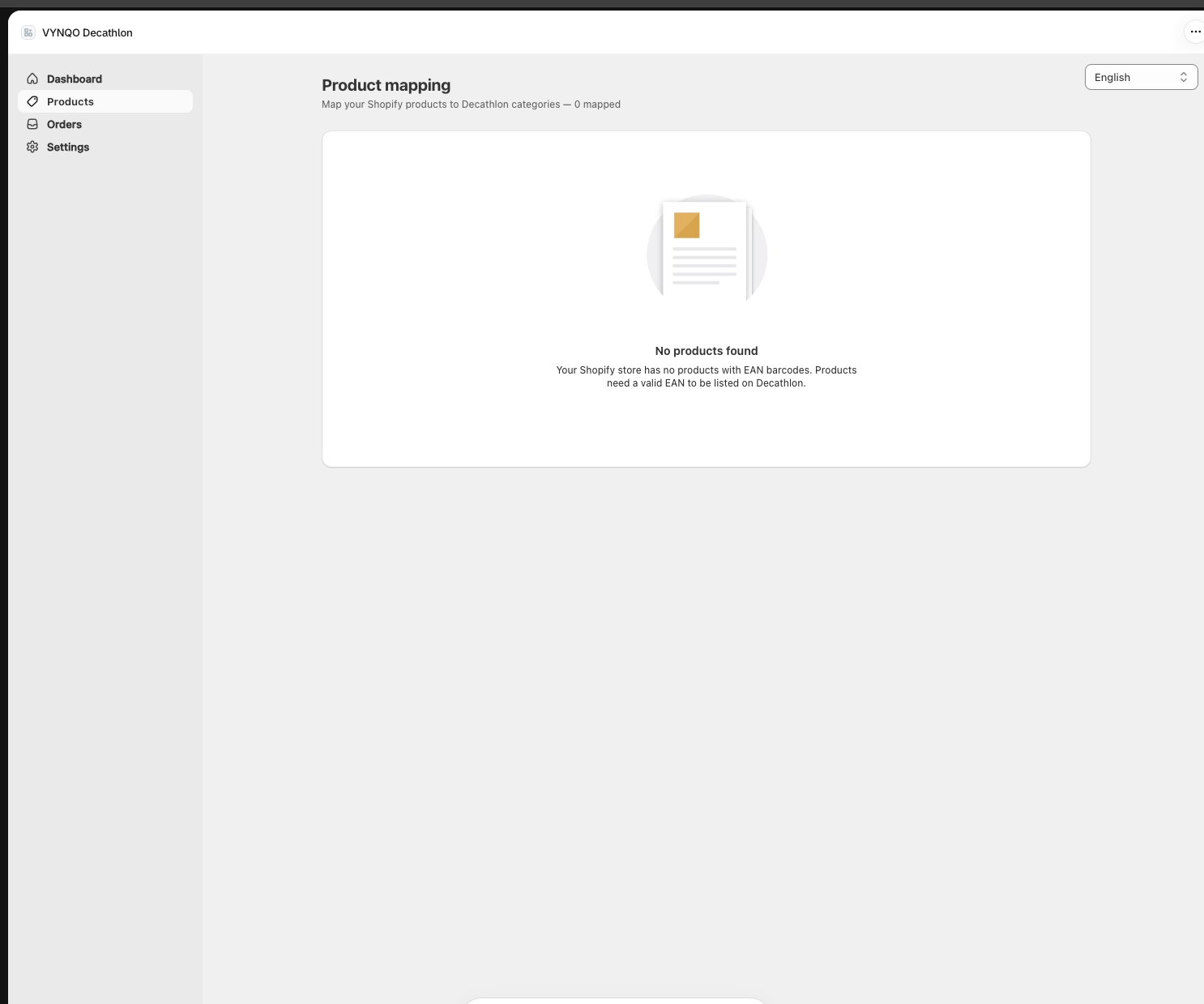
Go to Products in the sidebar. For each product you want on Decathlon, click Map to Decathlon and fill in:
| Field | Description | Example |
|---|---|---|
| Category | Decathlon product category | Jackets & Coats |
| Brand | Must match Decathlon's brand list | MAIUM |
| Gender | Target gender | 2|3 for unisex |
| Sport | Sport category code | From Mirakl VL11 |
| Color | Color code | From Mirakl VL11 |
| Condition | Product condition | 6336 = New |
Use gender 2|3 (MEN'S + WOMEN'S) for unisex products. This shows your products in both sections, giving maximum visibility on Decathlon.
Enable Sync
Go to Settings → check Automatic sync enabled → Save.
Once enabled, everything syncs automatically:
Monitor
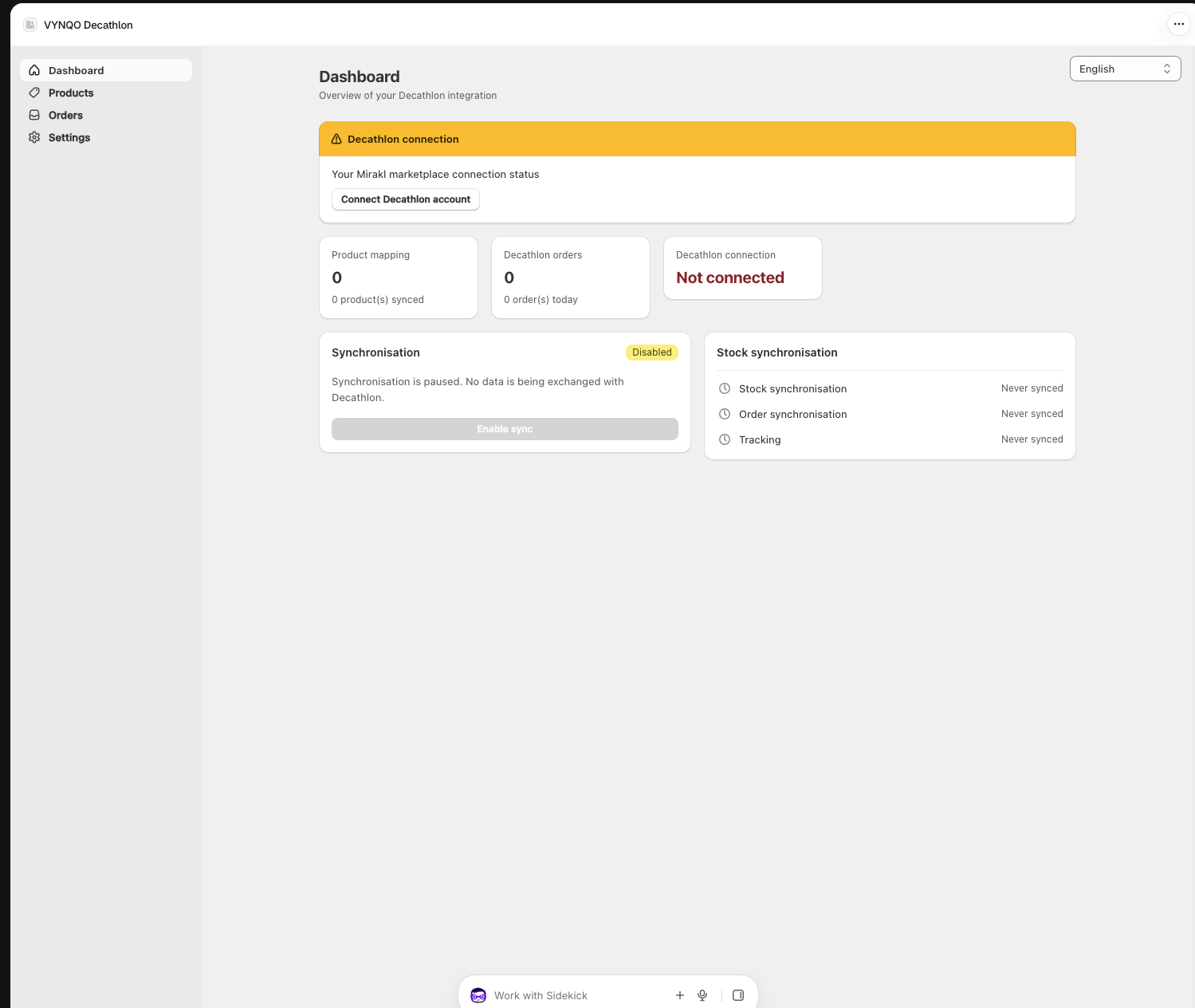
The Dashboard shows your connection status, products synced, orders received, and sync health. The Orders page shows all Decathlon orders with their status and tracking info.
Prerequis
Avant de commencer, assurez-vous d'avoir :
- Une boutique Shopify avec des produits ayant des codes EAN/code-barres
- Un compte vendeur Decathlon (via Mirakl)
- Postulez sur le portail marketplace Decathlon de votre pays
- Une fois approuve, allez dans Tableau de bord Mirakl → Parametres → API → Generer une cle API
Installer l'application
Installez VYNQO Decathlon depuis votre admin Shopify ou via le lien d'installation fourni par VYNQO. Apres l'installation, l'application s'ouvre dans votre admin Shopify.
Connecter votre compte Decathlon
Allez dans Parametres dans la barre laterale et entrez vos informations de connexion :
- URL API Mirakl :
https://marketplace-decathlon-eu.mirakl.net(identique pour tous les vendeurs UE) - Cle API : votre cle API Mirakl depuis le tableau de bord vendeur
Cliquez sur Tester la connexion pour verifier, puis Sauvegarder.
Configurer les parametres de stock
- Tampon de stock : unites a retenir. Ex. tampon de 3 avec 10 en stock → Decathlon affiche 7. Evite la survente.
- Canaux actifs : pays Decathlon, separes par
|
| Canaux | Code |
|---|---|
| Allemagne uniquement | DE |
| Allemagne + France + Espagne | DE|FR|ES |
| Les 6 canaux UE | DE|FR|ES|IT|PT|IE |
Commencez avec un tampon de stock de 3 pour les tailles standard et 1 pour les tailles extremes (XXS, XXL). Ajustez selon votre taux de vente.
Associer vos produits
Allez dans Produits. Pour chaque produit a vendre sur Decathlon, cliquez sur Associer a Decathlon et remplissez :
| Champ | Description | Exemple |
|---|---|---|
| Categorie | Categorie produit Decathlon | Vestes & Manteaux |
| Marque | Doit correspondre a la liste Decathlon | MAIUM |
| Genre | Genre cible | 2|3 pour unisexe |
| Sport | Code categorie sport | Depuis Mirakl VL11 |
| Couleur | Code couleur | Depuis Mirakl VL11 |
| Etat | Etat du produit | 6336 = Neuf |
Utilisez le genre 2|3 (HOMME + FEMME) pour les produits unisexes. Cela affiche vos produits dans les deux sections pour une visibilite maximale.
Activer la synchronisation
Allez dans Parametres → cochez Synchronisation automatique → Sauvegarder.
Une fois active, tout se synchronise automatiquement :
Surveiller
Le Tableau de bord affiche l'etat de connexion, les produits synchronises, les commandes recues et la sante de la synchronisation. La page Commandes affiche toutes les commandes Decathlon avec leur statut.
Capture d'ecran : Tableau de bord — apercu de la synchronisation
Voraussetzungen
Bevor Sie beginnen, stellen Sie sicher, dass Sie haben:
- Einen Shopify-Shop mit Produkten, die EAN/Barcode-Codes haben
- Ein Decathlon-Marketplace-Verkauferkonto (uber Mirakl)
- Bewerben Sie sich beim Decathlon-Marketplace-Portal Ihres Landes
- Nach Genehmigung gehen Sie zu Mirakl Dashboard → Einstellungen → API → API-Schlussel generieren
App installieren
Installieren Sie VYNQO Decathlon uber Ihren Shopify-Admin oder uber den von VYNQO bereitgestellten Installationslink. Nach der Installation offnet sich die App in Ihrem Shopify-Admin.
Decathlon-Konto verbinden
Gehen Sie zu Einstellungen in der Seitenleiste und geben Sie Ihre Verbindungsdaten ein:
- Mirakl API-URL:
https://marketplace-decathlon-eu.mirakl.net(gleich fur alle EU-Verkaufer) - API-Schlussel: Ihr Mirakl API-Schlussel aus dem Verkaufer-Dashboard
Klicken Sie auf Verbindung testen zur Uberprufung, dann Speichern.
Bestandseinstellungen konfigurieren
- Bestandspuffer: Einheiten, die zuruckgehalten werden. Z.B. Puffer von 3 bei 10 auf Lager → Decathlon zeigt 7. Verhindert Uberverkauf.
- Aktive Kanale: Decathlon-Lander, getrennt durch
|
| Kanale | Code |
|---|---|
| Nur Deutschland | DE |
| Deutschland + Frankreich + Spanien | DE|FR|ES |
| Alle 6 EU-Kanale | DE|FR|ES|IT|PT|IE |
Beginnen Sie mit einem Bestandspuffer von 3 fur Standardgrossen und 1 fur Extremgrossen (XXS, XXL). Passen Sie basierend auf Ihrer Verkaufsrate an.
Produkte zuordnen
Gehen Sie zu Produkte. Fur jedes Produkt auf Decathlon klicken Sie Zu Decathlon zuordnen und fullen Sie aus:
| Feld | Beschreibung | Beispiel |
|---|---|---|
| Kategorie | Decathlon-Produktkategorie | Jacken & Mantel |
| Marke | Muss mit Decathlon-Liste ubereinstimmen | MAIUM |
| Geschlecht | Zielgeschlecht | 2|3 fur Unisex |
| Sport | Sport-Kategorie-Code | Aus Mirakl VL11 |
| Farbe | Farbcode | Aus Mirakl VL11 |
| Zustand | Produktzustand | 6336 = Neu |
Verwenden Sie Geschlecht 2|3 (HERREN + DAMEN) fur Unisex-Produkte. Dies zeigt Ihre Produkte in beiden Bereichen fur maximale Sichtbarkeit.
Synchronisierung aktivieren
Gehen Sie zu Einstellungen → aktivieren Sie Automatische Synchronisierung → Speichern.
Nach der Aktivierung synchronisiert sich alles automatisch:
Uberwachen
Das Dashboard zeigt den Verbindungsstatus, synchronisierte Produkte, eingegangene Bestellungen und den Sync-Zustand. Die Bestellungen-Seite zeigt alle Decathlon-Bestellungen mit Status und Tracking-Informationen.
Screenshot: Dashboard — Synchronisierungsubersicht